Want to watch IPTV on Firestick tonight? Good news: setting up IPTV on Firestick takes about 10 minutes, and you don’t need any technical skills. In this 2026 guide we walk you through every click — from preparing your device to logging in with your playlist — plus one important warning about new Fire TV models that most guides still miss.
This tutorial is written by the support team at IPTV Mississauga, where we help Canadian customers set up their devices every day. Follow the steps in order and you’ll be streaming live channels, sports and movies in 4K before your popcorn is ready.
Before You Start: What You Need for IPTV on Firestick
Gather these four things before you set up IPTV on Firestick. Having them ready makes the whole process smooth:
- A compatible Fire TV device — a Fire TV Stick 4K, 4K Max, 4K Plus, Fire TV Stick HD (older generation) or a Fire TV Cube.
- A stable internet connection — at least 15 Mbps for HD and 25 Mbps or more for 4K streaming.
- Your IPTV login details — either Xtream Codes (server URL, username and password) or an M3U playlist link. If you don’t have a subscription yet, you can see our plans here.
- Your Fire TV remote with working batteries — you’ll type a few URLs.
Important 2026 Warning: Check Your Fire TV Operating System
This is the step most older tutorials skip. Since late 2025, Amazon has been shipping some new Fire TV devices with Vega OS, its own operating system, instead of the Android-based Fire OS. Devices running Vega OS do not allow sideloading, which means you can only install apps that are listed in the Amazon Appstore.
Here is a quick way to check which system you have:
- Open Settings from the Fire TV home screen.
- Go to My Fire TV and then About.
- Look at the software or OS information on the right side of the screen.
If your device runs Fire OS, follow this full guide. If it runs Vega OS, skip to the section “What If My Fire TV Runs Vega OS?” further down. Popular models such as the Fire TV Stick 4K, 4K Max and Fire TV Cube (3rd Gen) still run Fire OS, so most viewers can follow every step below.
Step 1: Enable Developer Options on Your Firestick
Developer Options are hidden by default on recent Fire OS versions. Unlocking them takes 20 seconds:
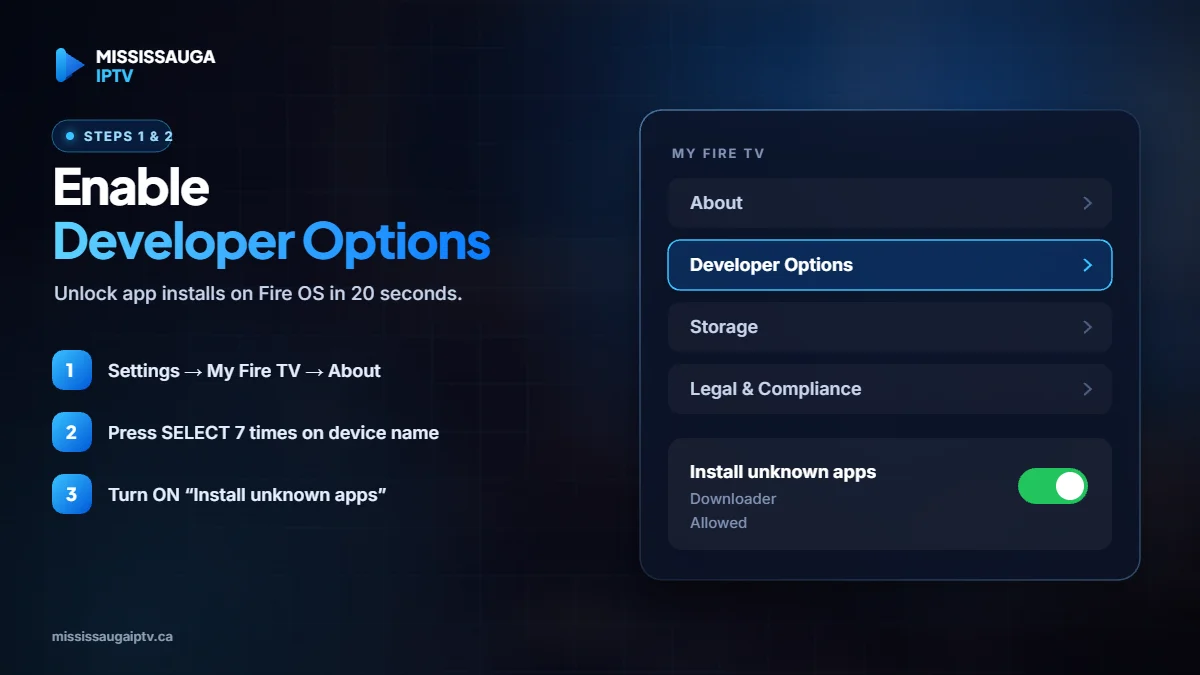
- Go to Settings → My Fire TV → About.
- Highlight your device name (for example “Fire TV Stick 4K”).
- Press the select (centre) button 7 times in a row.
- A message will confirm that you are now a developer.
Press the back button once and you will see a new Developer Options menu under My Fire TV.
Step 2: Allow Apps from Unknown Sources
Now we tell the Firestick that it may install apps from outside the Amazon Appstore:
- Open Settings → My Fire TV → Developer Options.
- Select Install unknown apps (on some versions it’s called Apps from Unknown Sources).
- Turn the switch ON for the Downloader app (you’ll install it in the next step — you can come back here if it isn’t listed yet).
- Confirm the warning message.
Only enable this for apps you trust. A good habit is to switch it off again once your IPTV player is installed.
Step 3: Install the Downloader App
Downloader is a free utility that lets your Firestick download files from a web address. It’s the safest and simplest way to install a player for IPTV on Firestick:
- Go back to the home screen and select the Find (magnifying glass) icon.
- Type Downloader and select the orange app by AFTVnews.
- Click Get or Download and wait for it to install.
- Open Downloader and allow access to files if asked.
You can learn more about the app on the developer’s official website, AFTVnews.
Step 4: Choose and Install Your IPTV Player App
Your IPTV subscription gives you the channels; the player app is the “TV remote” that displays them. These are the three most popular choices among our Canadian customers:
| Player | Best for | Login type |
|---|---|---|
| TiviMate | TV-style guide, recording, power users | Xtream Codes or M3U |
| IPTV Smarters Pro | Beginners, simple menus | Xtream Codes or M3U |
| IBO Player | Multi-device households | M3U (via device ID) |
Inside Downloader, type the official download address of the player you choose (your provider’s support team can send you the correct, safe link) and press Go. When the file finishes downloading, select Install, then Done. Always use official links — never install players from random websites.
If you want the full TV-guide experience, read our dedicated TiviMate setup guide after this tutorial.
Step 5: Log In With Your IPTV Subscription Details
Open your new player app and choose how to add your playlist:
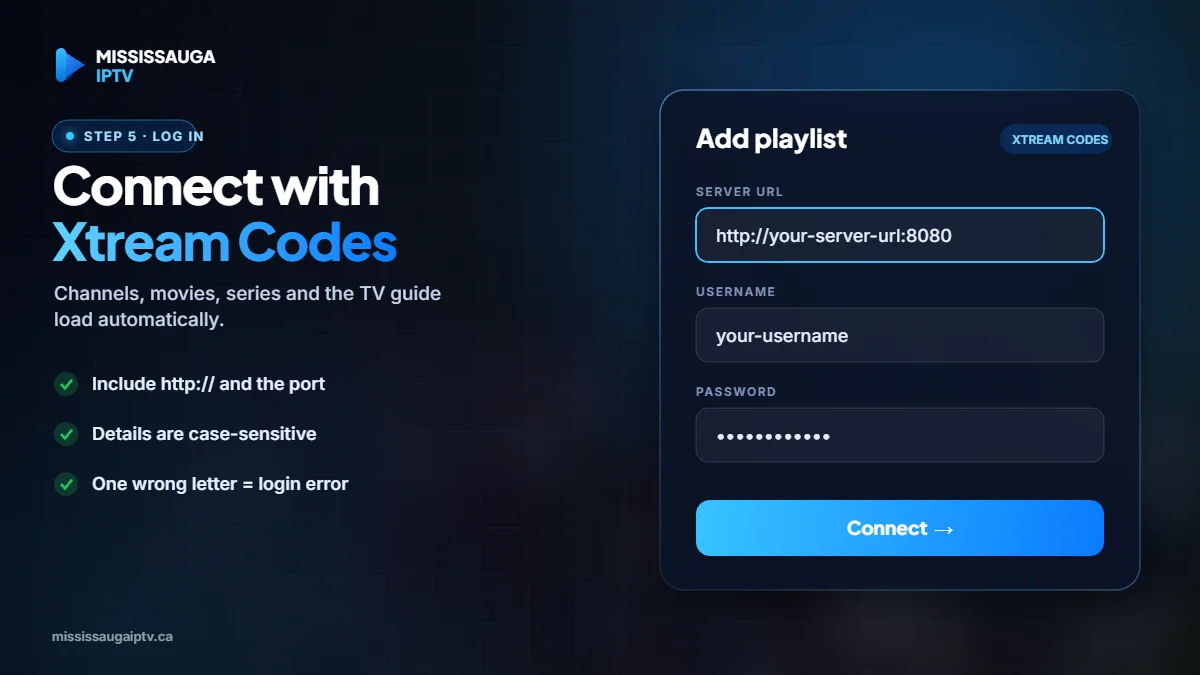
- Xtream Codes (recommended): enter the server URL, username and password exactly as they appear in your activation message. This method loads channels, movies, series and the TV guide automatically.
- M3U playlist: paste the full M3U link. Use this only if your provider recommends it.
Double-check for spaces or missing characters — 90% of login errors come from a single wrong letter in the URL or password.
Step 6: Load the TV Guide (EPG) and Organise Your Channels
Once logged in, give the app one or two minutes to load everything. To make IPTV on Firestick feel just like cable:
- Update the EPG (electronic program guide) so you can see what’s on now and next.
- Add favourites — hockey, news, kids and your home-country channels — so you don’t scroll through thousands of channels.
- Hide categories you never watch to make the list faster.
Step 7: Optimise Your Firestick for Smooth 4K Streaming
A few small tweaks make a big difference when you use IPTV on Firestick every day:
- Use a wired connection with an Ethernet adapter when possible, or keep the stick close to your router on 5 GHz Wi-Fi.
- Clear the app cache once a month from Settings → Applications → Manage Installed Applications.
- Turn off data monitoring under Settings → Preferences → Data Monitoring.
- Close background apps you don’t use.
- Restart the Firestick once a week by holding Select + Play for 5 seconds.
Still seeing freezes? Our full guide on how to fix IPTV buffering covers 9 proven fixes.
What If My Fire TV Runs Vega OS?
If your device runs Vega OS, sideloading with Downloader is not possible. You still have options:
- Search the Amazon Appstore for an IPTV player that supports Xtream Codes or M3U playlists and install it directly.
- Use another device you already own — an Android TV box, a Google TV device, a Smart TV with a compatible player, or a phone or tablet.
- Ask your provider which apps they currently support on Vega OS. Our installation guide lists the setups we recommend for every device.
If you are buying a new streaming stick mainly for IPTV, check the product listing and choose a model that runs Fire OS.
Common IPTV on Firestick Problems (and Quick Fixes)
- “Invalid username or password” — re-type your details carefully, check that the server URL includes “http://” and the port number if one was provided.
- Channels load but don’t play — restart the app, then restart the Firestick. If one channel still fails, report it to support.
- No TV guide — refresh the EPG in the player settings and wait a few minutes.
- App closes by itself — clear the cache, and make sure the stick has at least 500 MB of free storage.
- Picture freezes during live sports — switch to Ethernet or 5 GHz Wi-Fi and lower the stream quality to FHD for peak hours.
IPTV on Firestick vs Other Streaming Devices
The Firestick isn’t the only way to watch IPTV, but IPTV on Firestick offers the best balance of price, size and app support. Here’s how it compares with other popular devices our customers use:
| Device | Setup difficulty | Best IPTV apps | Ideal for |
|---|---|---|---|
| Fire TV Stick 4K / 4K Max (Fire OS) | Easy (10 minutes) | TiviMate, IPTV Smarters Pro | Most households |
| Android TV / Google TV box | Very easy (Play Store) | TiviMate, IPTV Smarters Pro | Power users, 4K HDR |
| Smart TV (Samsung / LG) | Easy | IBO Player and similar | No extra device |
| Phone or tablet | Very easy | IPTV Smarters Pro | Watching on the go |
If you already own a Fire TV Stick 4K or 4K Max, you have one of the best devices for IPTV on Firestick — there’s no need to buy anything else.
Tips to Type Faster on Your Firestick
Typing long server URLs with a remote is the slowest part of setting up IPTV on Firestick. These tricks save time:
- Use the Fire TV app on your phone as a remote — it has a keyboard, so you can type URLs and passwords much faster.
- Plug in a Bluetooth keyboard if you have one; Fire TV devices support them.
- Copy details carefully from your activation message, paying attention to capital letters, numbers and the port at the end of the server URL.
Is It Safe to Use IPTV on Firestick?
Using IPTV on Firestick is safe when you follow a few simple rules:
- Install player apps only from official sources or links provided by your provider’s support team.
- Turn Install unknown apps back off once your player is installed.
- Never enter your Amazon password or payment details inside an IPTV app.
- Keep your Fire TV software up to date from Settings → My Fire TV → About → Check for Updates.
A trustworthy provider will never ask you for anything other than your IPTV login details.
How to Keep IPTV on Firestick Running Smoothly
Once everything works, a two-minute monthly routine keeps your IPTV on Firestick fast and stable:
- Update your IPTV player when a new version is available.
- Clear the player’s cache.
- Refresh the TV guide (EPG).
- Restart your Firestick and your router.
- Remove apps you no longer use to free up storage.
Why Canadian Viewers Choose IPTV on Firestick
The Firestick is small, affordable and plugs into any TV with an HDMI port. Combined with a reliable IPTV subscription, it replaces an expensive cable box with access to thousands of live channels, a huge movie and series library, and a TV guide that works like traditional cable. With IPTV Mississauga, you also get instant activation, anti-freeze servers optimised for Canadian internet providers, and 24/7 WhatsApp support to help you through every step.
Frequently Asked Questions
Is it difficult to set up IPTV on Firestick?
No. If you can type a URL with your remote, you can set up IPTV on Firestick yourself. The whole process takes about 10 minutes, and our support team can guide you live on WhatsApp if you get stuck.
Which IPTV app is best for Firestick?
TiviMate is the favourite for a cable-like guide, while IPTV Smarters Pro is easier for beginners. Both work with Xtream Codes logins.
What internet speed do I need?
We recommend at least 15 Mbps for HD and 25 Mbps or more for 4K. A wired or 5 GHz connection gives the most stable picture.
Can I use the same subscription on two Firesticks?
A standard subscription works on one device at a time. For two TVs streaming at once, choose a multi-device plan.
Do I need a VPN for IPTV on Firestick?
It’s not required. Our servers are optimised for Canadian internet providers. Some viewers use a VPN for privacy, but a slow VPN can cause buffering, so test with and without it.
What should I do if Downloader won’t install the app?
Check that “Install unknown apps” is turned on for Downloader, make sure you have at least 500 MB of free storage, and confirm the download link is correct.
Does IPTV on Firestick work outside Canada?
Yes. Your login is not locked to one location, so you can take your Firestick on holiday and stream anywhere with a good internet connection.
Ready to Start Streaming?
You now know exactly how to set up IPTV on Firestick in 2026 — including the Vega OS check that saves you hours of frustration. If you don’t have a subscription yet, choose your IPTV Mississauga plan and receive your login details in minutes, along with a free setup guide for your device.