Nothing ruins a hockey night faster than IPTV buffering. The picture freezes, the wheel spins, and by the time it comes back you’ve missed the goal. The good news: most IPTV buffering problems have simple causes, and you can fix them yourself in a few minutes.
In this guide, the support team at IPTV Mississauga shares the 9 fixes we use every day with Canadian customers on Bell, Rogers, Telus, Cogeco and Videotron connections. Work through them in order — the first three solve most cases.
Why Does IPTV Buffering Happen?
IPTV streams video over your internet connection in real time. Buffering happens when your device can’t receive data as fast as the video needs it. The cause is almost always one of these:
- Your home network — weak Wi-Fi, a busy router, or too many devices online at once.
- Your streaming device — a full cache, low storage, or an old, overheating stick.
- Your player app settings — a buffer that’s too small or the wrong decoder.
- Your internet provider — congestion or traffic shaping during peak evening hours.
- The IPTV server — overloaded servers from low-quality providers.
The fixes below go from the easiest and most common to the more advanced.
How Much Speed Do You Need to Stop IPTV Buffering?
Before changing anything, test your real speed on the device you watch IPTV on (not on your phone). Open a browser or speed-test app and use a service like Speedtest by Ookla. Then compare with this table:
| Stream quality | Minimum speed | Recommended speed |
|---|---|---|
| SD | 5 Mbps | 10 Mbps |
| HD (720p/1080p) | 10 Mbps | 15 Mbps |
| 4K / UHD | 25 Mbps | 40 Mbps or more |
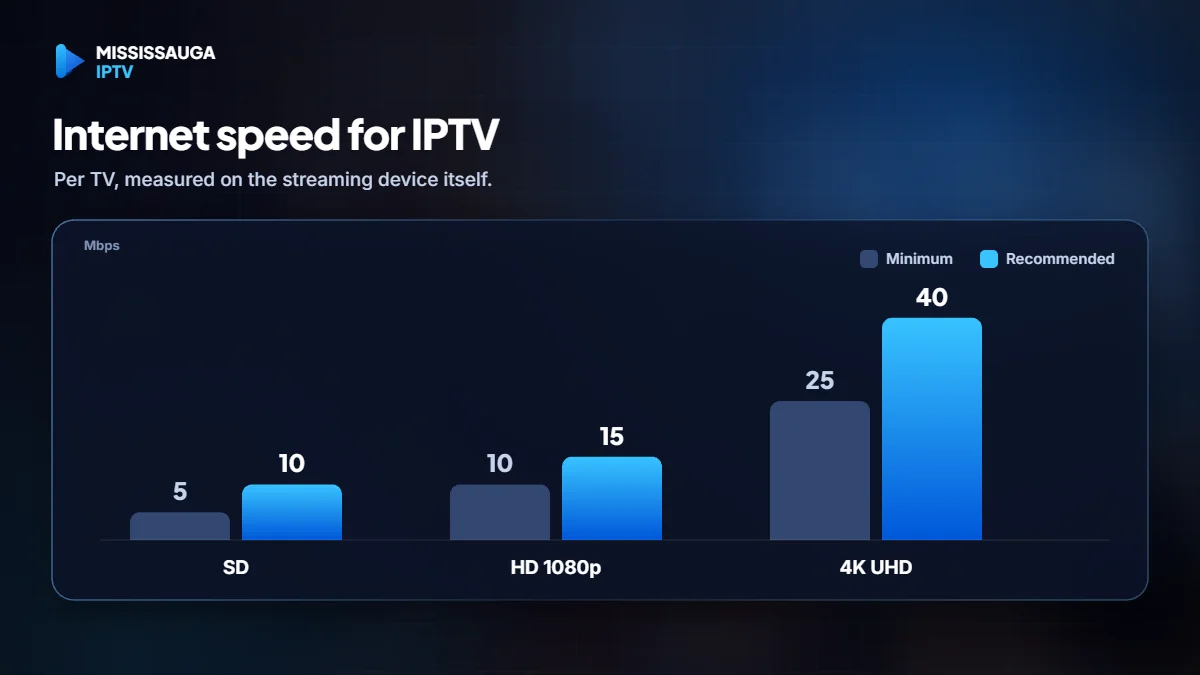
Remember that these numbers are per TV. If two people stream at the same time while someone else is gaming or downloading, you need more.
Fix 1: Restart Your Device and Router
It sounds basic, but a full restart clears memory leaks and resets the connection to your provider. Unplug your router and your streaming device for 30 seconds, plug the router back in first, wait until the internet light is stable, then start your device. Many IPTV buffering issues disappear right here.
Fix 2: Use Ethernet or 5 GHz Wi-Fi
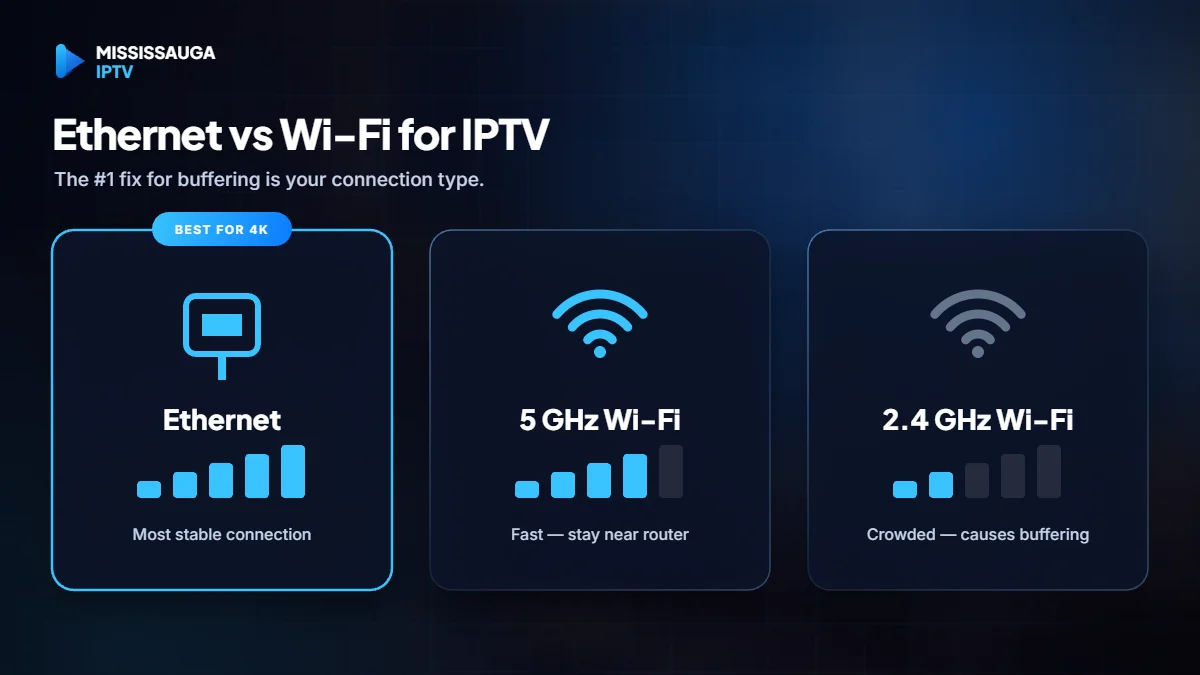
Wi-Fi is the number one cause of IPTV buffering. Walls, microwaves and neighbours’ networks all interfere with the signal.
- Best: connect your device with an Ethernet cable. Many Firesticks need a small Ethernet adapter, which is inexpensive and makes a huge difference.
- Good: connect to your router’s 5 GHz network instead of 2.4 GHz, and keep the device within a room or two of the router.
- Mesh Wi-Fi: if your TV is far from the router, a mesh point near the TV helps more than buying a faster internet plan.
Fix 3: Clear the App Cache and Free Up Storage
Streaming apps store temporary data that grows over time. When storage fills up, playback stutters.
- On Firestick: Settings → Applications → Manage Installed Applications → your IPTV app → Clear cache.
- On Android TV: Settings → Apps → your IPTV app → Clear cache.
- Uninstall apps you don’t use and keep at least 500 MB to 1 GB free.
Don’t press “Clear data” unless you’re ready to log in again — it removes your playlist.
Fix 4: Increase the Buffer Size in Your IPTV Player
A larger buffer means the player downloads a few more seconds of video in advance, which absorbs small drops in speed. In TiviMate, go to Settings → Playback → Buffer size and choose Medium or Large. Other players have a similar option, sometimes called “network cache” or “stream buffer”. Our TiviMate setup guide shows every recommended setting.
Fix 5: Switch the Video Decoder or Player
If only some channels stutter, the issue may be decoding rather than speed:
- Try switching between Hardware and Software decoder in the player’s playback settings.
- Test the same channel in a second player app. If it plays fine there, the first app’s settings are the problem.
Fix 6: Change Your DNS Settings
Your internet provider’s DNS servers can be slow at busy times. Switching to a fast public DNS can make channels load quicker and more reliably. Popular free options are Cloudflare DNS (1.1.1.1 and 1.0.0.1) and Google Public DNS (8.8.8.8 and 8.8.4.4). You can set them on your router (for every device) or in your device’s network settings.
Fix 7: Lower the Stream Quality at Peak Hours
Between 7 pm and 11 pm, networks across Canada are at their busiest. If you see IPTV buffering only during prime time, switch from the 4K version of a channel to the FHD version for big games. You’ll barely notice the difference on most TVs, but your stream will be much more stable.
Fix 8: Reduce Network Load at Home
Every device in your home shares the same connection. While watching:
- Pause large downloads, game updates and cloud backups.
- Disconnect devices you’re not using.
- If your router supports QoS (Quality of Service), give priority to your TV or streaming device.
Fix 9: Choose a Reliable IPTV Provider
If you’ve tried everything above and still see IPTV buffering on many channels — especially during live sports — the problem is probably the provider. Cheap resellers overload their servers, and streams collapse when thousands of people watch the same game.
A quality provider uses load-balanced servers close to its viewers, monitors uptime, and offers support when something goes wrong. At IPTV Mississauga, our Anti-Freeze servers are optimised for Canadian internet providers, with 99.9% uptime and a 7-day money-back guarantee so you can test the quality on your own connection.
How to Find the Real Cause of IPTV Buffering
Before trying every fix, spend two minutes narrowing down where the problem comes from. Ask yourself these questions:
| What you notice | Most likely cause | Best fix |
|---|---|---|
| All channels buffer, all day | Weak Wi-Fi or slow device | Fix 2 and Fix 3 |
| Buffering only from 7 pm to 11 pm | Network congestion at peak hours | Fix 7 and Fix 8 |
| Only one or two channels freeze | That specific stream | Report it to support |
| Buffering on one TV but not another | The device or its location | Fix 2 and Fix 3 |
| Video plays but stutters with fast motion | Decoder or frame rate setting | Fix 4 and Fix 5 |
Testing on a second device is the quickest way to find the answer. If a phone on the same Wi-Fi plays the channel perfectly while your TV stick buffers, the stick or its connection is the problem — not the provider.
Router Settings That Reduce IPTV Buffering
Your router is the heart of your home network. A few settings can make IPTV much more stable:
- Update the router firmware — most providers’ routers update themselves, but older models may need a manual update.
- Choose a less crowded Wi-Fi channel — in apartments and condos, many networks share the same channel. Your router’s settings page or app can usually pick the best one automatically.
- Enable band steering or create a separate 5 GHz network name so your TV always connects to the faster band.
- Place the router in the open — not inside a cabinet or behind the TV.
- Replace very old routers — a router more than five or six years old may not handle several HD streams at once.
Best Devices to Avoid IPTV Buffering
A powerful device decodes video more smoothly and handles larger buffers. For 4K IPTV, our customers get the most stable results with:
- Nvidia Shield TV — excellent performance and a built-in Ethernet port.
- Recent Google TV or Android TV boxes with at least 2 GB of RAM.
- Fire TV Stick 4K Max or Fire TV Cube running Fire OS, ideally with an Ethernet adapter.
Older or entry-level sticks can still work well for HD, but they are more likely to struggle with 4K at peak hours. If you use a Firestick, our IPTV on Firestick guide includes extra optimisation steps.
IPTV Buffering on Smart TVs (Samsung, LG and Others)
Smart TV apps are convenient, but their built-in Wi-Fi chips are often weaker than those in streaming sticks or boxes. If you see IPTV buffering on a Smart TV app:
- Use the TV’s Ethernet port — almost every Smart TV has one, and it’s the single most effective fix.
- Update the TV software from the TV’s settings menu.
- Close other TV apps running in the background, then restart the TV completely by unplugging it for 30 seconds.
- Try the same channel on a streaming stick — if it plays smoothly there, the TV app or Wi-Fi chip is the bottleneck.
Many viewers who struggle with IPTV buffering on a Smart TV solve it permanently by plugging in a cable or adding an inexpensive Android TV device.
When to Contact Your IPTV Provider About Buffering
If you’ve worked through the fixes and still have IPTV buffering, contact support with useful details so they can help quickly:
- The channel name and the time the problem happened.
- Your device and player app (for example, Firestick 4K Max with TiviMate).
- Your speed test result from the TV device.
- Whether the problem happens on every channel or only a few.
At IPTV Mississauga, our team answers on WhatsApp 24/7 and can check the server side of any stream within minutes.
How to Prevent IPTV Buffering During Big Live Events
Championship nights, season openers and big fight cards are when IPTV buffering hurts the most, because millions of people stream at the same moment. Prepare 15 minutes before the event starts:
- Restart your device and router so you begin with a fresh connection and empty memory.
- Plug in Ethernet if you normally use Wi-Fi — for one night, it’s worth running a long cable.
- Pause downloads and updates on every computer, console and phone in the house.
- Open the channel early so the player builds its buffer before the action begins.
- Pick the FHD version of the channel if your connection is under 40 Mbps, and keep the 4K version as a backup.
- Keep a second channel ready in your favourites in case the first stream has a problem.
These simple habits remove most of the IPTV buffering people experience on busy nights. Combined with a provider whose servers are built for peak demand, you’ll watch every big moment live without the spinning wheel.
If you follow this routine and still notice IPTV buffering only during the biggest events, take note of the exact time and channel and send it to your provider. A good support team will compare your report with their server load and tell you honestly whether the problem is on their side or yours — and how to fix it before the next game night.
IPTV Buffering Quick Checklist
Use this list next time the picture freezes:
- Restart the device and router.
- Check your speed on the TV device itself.
- Switch to Ethernet or 5 GHz Wi-Fi.
- Clear the app cache.
- Increase the player’s buffer size.
- Try another decoder or player.
- Change DNS to Cloudflare or Google.
- Use FHD instead of 4K at peak hours.
- Contact your provider’s support with the channel name and time.
Frequently Asked Questions
Why does my IPTV only buffer in the evening?
Evening is peak time for internet providers and IPTV servers. Use a wired connection, choose FHD channels for big events, and make sure your provider has servers that handle peak traffic.
Will a VPN fix IPTV buffering?
Sometimes. If your internet provider slows down streaming traffic, a fast VPN can help. If the issue is weak Wi-Fi or a slow device, a VPN can make buffering worse.
Is IPTV buffering caused by my Firestick?
It can be. Older sticks with little storage or a full cache struggle with 4K streams. Clear the cache, restart weekly, and consider a newer model if problems continue. See our guide on setting up IPTV on Firestick for optimisation tips.
How much internet speed do I need for 4K IPTV?
At least 25 Mbps per 4K stream, and 40 Mbps or more for a comfortable margin.
Why does only one channel buffer?
If every other channel works, the issue is usually that specific stream. Report the channel name to your provider’s support so they can check the source.
Enjoy Smooth Streaming Again
Most IPTV buffering comes down to Wi-Fi, a full cache or the wrong player settings — all things you can fix today. If the problem is your provider, it may be time to switch. See IPTV Mississauga plans for stable 4K streaming, instant activation and 24/7 WhatsApp support, all backed by a 7-day money-back guarantee.